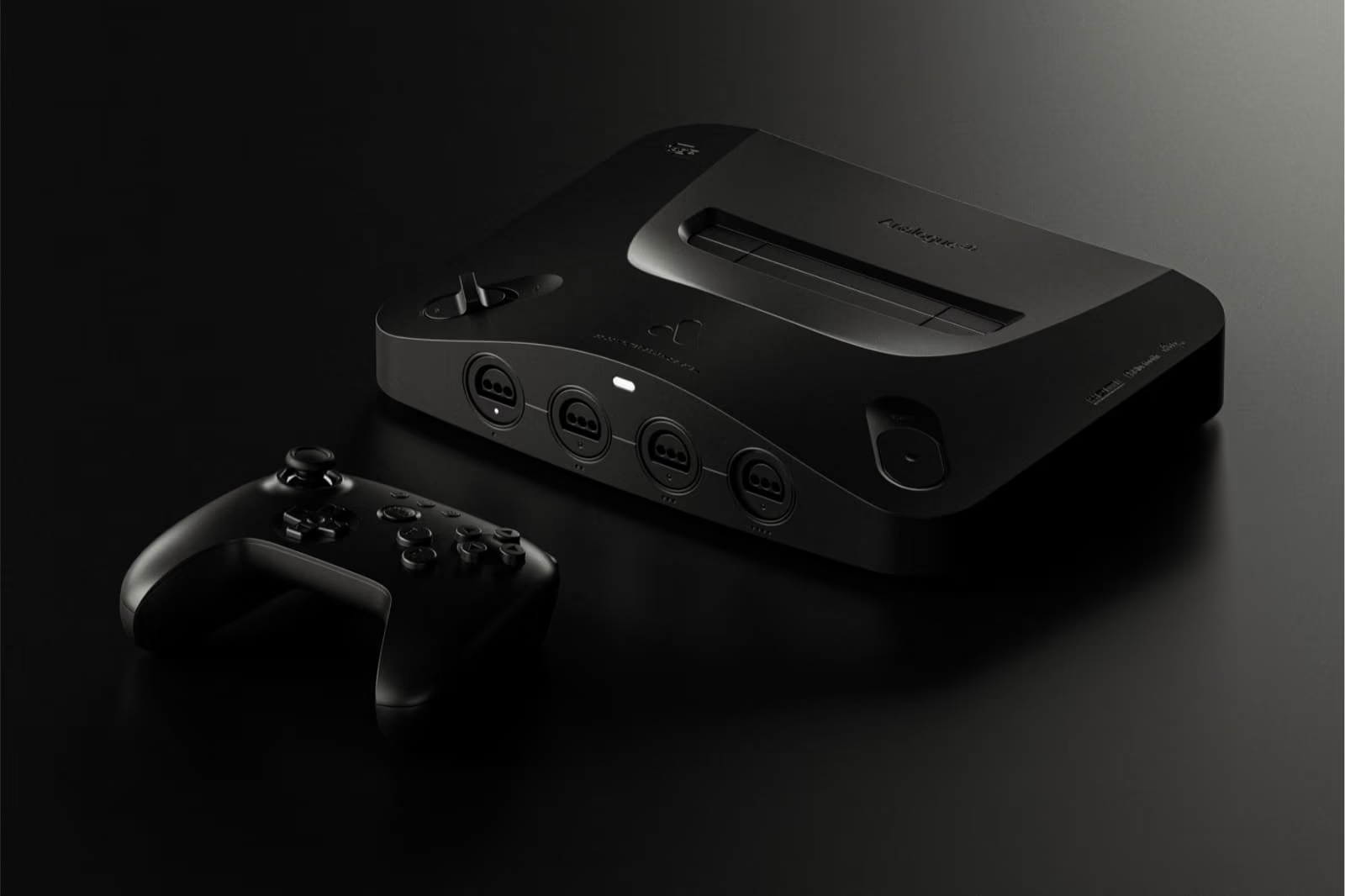
Analogue 3D Guide 2026: Best Settings, Firmware, Memories and Flash Carts
The Analogue 3D's current firmware is 3DOS 1.5.1, released on 23 September 2026, and it is a very different machine from the one that shipped on 18 November 2025. Since launch Analogue has added save states (called Memories, in 1.3.0), screenshots and a 4K Gallery (1.4.0), internal horizontal upscaling (1.5.0), Switch Online controller support (1.2.0) and Advanced HDR (1.2.5). The best starting point on the console is the per-game defaults Analogue re-optimised in 1.5.1, which include Auto overclock. On the TV side, Analogue's advice is Game Mode with HDR tone mapping set to HGiG or off, and a 4K set for the CRT-style Original Display Modes.
This guide explains every menu, what each option actually does according to Analogue's own documentation, and where the console's limits are. If you want the verdict on whether to buy one, that is in the Analogue 3D review; this page is about getting the most out of it once it is on your shelf.
What this guide covers, and what it was checked against
- Firmware: 3DOS 1.5.1 (2026-09-23), the latest on Analogue's firmware page on 6 November 2026. Every version from 1.1.0 to 1.5.1 was read at its official release notes page.
- Menus and defaults: Analogue's 3D User Guide, dated 2026-09-23.
- Flash carts: sourced reference only. Nobody at Cart & Pixel owns an N64 flash cart, so that section reports what Krikzz, the SummerCart64 developer, Analogue and named testers have published. Nothing in it has been tried here.
- ModRetro M64: sourced reference only, from ModRetro's product page and labelled reporting. It has not been used here.
- Hands-on checks: Rob checked the settings, Memories and controller sections on his own Analogue 3D before publication.
What firmware is the Analogue 3D on, and what changed since launch?
Analogue publishes every 3DOS release at analogue.co/support/3d/firmware, with release notes, a download and an MD5 checksum for each. Thirteen versions have shipped in the first ten months. The table lists the changes that matter to owners; the full notes are linked from each version number.
| Version | Date | What changed that you will notice |
|---|---|---|
| 1.1.0 | 2025-11-18 | Launch firmware, described only as the initial 3DOS update release; 37.6 MB |
| 1.1.9 | 2025-11-28 | Big upgrade to the Unleashed overclock for CPU-bound games such as Perfect Dark and GoldenEye 007; manual region selection; Disable Texture Filtering option; frame overflow fixes for Bomberman Hero (PAL) and Super Smash Bros. |
| 1.2.0 | 2026-01-30 | Nintendo Switch Online N64 controller support; Force Progressive Output (beta); playtime tracking in Library; fixes for some 4K displays, HDMI CEC/eARC and audio clipping; new CPU features MI Repeat and EBus; Force Original Hardware now also disables 32-bit colour |
| 1.2.1 | 2026-02-13 | Smarter automatic choice of virtual Controller Pak or Rumble Pak per game (Perfect Dark now starts with Rumble Pak); playtime over 24 hours displays properly |
| 1.2.2 | 2026-02-27 | Startup Action (boot straight into the inserted cartridge); Power Off option; virtual Controller Pak data and playtime now saved if you power off mid-game |
| 1.2.3 | 2026-03-13 | GameShark compatibility fix; better cartridge detection; core version display; RSP, CP0 and VI timing improvements |
| 1.2.4 | 2026-03-28 | "Advanced Library detection for variable game headers", which is what made flash carts track each game separately; "Ready" label on the inserted cartridge |
| 1.2.5 | 2026-04-10 | Advanced HDR for OLED displays and the Max. Luminance setting; alphabetical Library index; in-game controller pairing |
| 1.2.6 | 2026-04-24 | Progressive Output toggle in the In-Game Menu; fixes flicker with Progressive Output in games such as Resident Evil 2; Library cartridge colours; updated Auto Overclock behaviour |
| 1.3.0 | 2026-05-15 | Memories (save states), 20 per game; Cross-Pak saves; Memory hotkeys; "No Pak" option for wireless controllers |
| 1.4.0 | 2026-06-23 | Screenshots and Gallery, with lossless 4K export using Original Display Modes and HDR options |
| 1.5.0 | 2026-07-21 | Horizontal Upscaling; instant Quick Load; "Recent Memory" startup action; full RSP interlock behaviour; new Advanced menu |
| 1.5.1 | 2026-09-23 | Overclock and Force Original Hardware adjustable in-game; new "Off" overclock option; re-optimised library defaults (Auto Overclock, Horizontal Upscaling, Progressive Output); create a Memory from the In-Game Menu; editable details for Unknown Cartridges; view the default Virtual Accessory under Hardware → Virtual Accessory; Library-wide reset options under Settings → System → Maintenance |
Three of those releases changed what the console is. 1.3.0 gave it save states that also cover accessories: Analogue's notes say Memories stay compatible with all original accessories, including the Transfer Pak with Pokémon Stadium's GB Tower. 1.5.0 added internal upscaling, which Cart & Pixel covered when it shipped. For 1.5.1, Analogue's notes recommend resetting your Library hardware configurations "for the best plug-and-play experience", because the per-game defaults were re-tuned.
That last point matters if you have owned the console since launch. Per-game settings you changed yourself are kept when defaults change (the 1.5.0 notes say custom configurations are unaffected), so you can be running old choices against new defaults without knowing it. The fix is in the next section.
How do you update the Analogue 3D firmware?
3DOS updates go on through the SD card. The 3D ships with a 16GB card pre-installed, along with an HDMI cable, a USB cable and a 30W GaN USB-C power supply (PD 3.0), per Analogue's store page. Analogue's product page lists Wi-Fi updates as "coming soon", so as of 1.5.1 there is no over-the-air option. The Getting Started guide gives two methods.
Method A: take the SD card out
- Download the latest file from analogue.co/support/3d. For 1.5.1 it is 22.3 MB, and the release page lists its MD5 (
75f14fd5e3961acff208d154e1ea8c9f) so you can check the download. - Power the 3D off fully and remove the SD card.
- Delete any older 3DOS update file from the root of the card.
- Copy the new file to the root of the card.
- Reinsert the card and power on. The update starts by itself: the Power LED goes yellow and the controller LEDs blink.
- Leave it alone for the 3 to 6 minutes it takes. It restarts when finished.
Method B: USB-C SD connect, card stays in
- Power off and unplug all controllers and cables, leaving the SD card in.
- Connect the 3D's power port to a computer with a USB-C cable (USB-A to USB-C also works) and wait 5 seconds.
- Hold Reset, then also hold the Power Switch, and keep both held until the Power LED turns green. Release.
- The SD card mounts on your computer. Delete old update files from the root, copy the new one across, then power off.
- Reconnect the power supply and HDMI, and power on. The update installs as in Method A.
Since 1.5.1, 3DOS moves the update file to /System/Archived on the card after installing it, so you no longer need to clean it up by hand next time. The 1.2.0 and 1.5.1 notes both warn that the last stage of an update can take longer than usual and that the console may reboot during it.
If an update will not start, the troubleshooting page has a forced update: with an update file on the card and the 3D powered off, hold the Pairing Button, tap the Power Switch, and keep holding Pairing until the Power LED turns yellow.
You can also check your version and read the changelog at Settings → System. Highlighting the version shows a QR code that links to the changelog, according to the 3DOS guide.
After updating: reset old per-game settings
Settings → System → Maintenance (added in 1.5.1) has two Library-wide reset options that keep your saves:
- Reset All Hardware Configurations returns every Library cartridge to its default Hardware and Advanced settings (overclock, region, video processing).
- Reset All ODM Configurations returns every cartridge to its default Original Display Mode settings.
Global Reset restores factory settings and forgets paired controllers, but the 3DOS guide says your Library, per-game configurations, virtual Controller Paks, Memories and other SD card contents are kept. 1.5.1 also lets you reset Hardware and Advanced options for a single game from the In-Game Menu.
How are the Analogue 3D settings organised?
There are two layers, and knowing which is which saves a lot of hunting:
- System settings (Settings → Display, Settings → System, Settings → General) apply to the whole console: HDMI mode, HDR, date and time, startup behaviour.
- Per-game settings live in the Configure menu (from the Library, before you play) and the In-Game Menu (while you play). They are split into four pages: Display Mode, Hardware, Advanced and Customization. Each cartridge remembers its own.
The per-game pages are documented on Analogue's In-Game Settings & Configuration page. In the Configure menu, 1.2.0 mapped "Reset to Default" to C-Up.

What are the best Analogue 3D display settings?
Settings → Display: HDMI mode, ALLM and HDR
| Setting | Options | Default | What it does |
|---|---|---|---|
| HDMI Mode | UHD (4K 2160p), FHD (1080p), UHD 50Hz, FHD 50Hz | Detected automatically | Output resolution and refresh. 4K needs a display that accepts 4K 50/60Hz 4:4:4 RGB |
| ALLM | On / Off | On | Auto Low Latency Mode switches an HDMI 2.1 TV into its low-latency mode |
| HDR | On / Off | On for compatible displays | HDR10 output, used by the Original Display Modes |
| Avg/Max Luminance | 125/400 (CRT), 200/650 (BVM), 250/800, 300/950, 500/1700 nits | 125/400 | Console-wide HDR brightness target. Only shown when HDR is on |
All of this comes from the Settings → Display section of the 3DOS guide. Two details from it are worth acting on.
First, the 4K requirement is specific. Analogue's Getting Started page notes that some 4K displays only accept 1080p at 60Hz, and that you should use the included HDMI cable or a certified 4K one. If the 3D picks 1080p on a 4K set, check the cable first, then whether that HDMI input on your TV accepts 4K 4:4:4 RGB.
Second, the luminance presets are not a brightness slider. Analogue's 1.2.5 notes describe Advanced HDR as designed for modern OLEDs, because "Recreating a CRT beam demands high peak localized brightness". The guide defines average luminance as a full-screen fill and maximum luminance as a window of roughly 25% of the screen. Its advice is to:
- set the TV's HDR tone mapping to HGiG or off;
- use Game Mode or ALLM;
- keep the maximum luminance at or below what your display can actually reach.
Starting point: leave HDR on, set tone mapping to HGiG, start at the 125/400 preset (Analogue labels it "CRT" because it approximates a consumer CRT's brightness; it is a console-wide Display setting, separate from the CRT Original Display Mode), and step up only if your TV's measured peak brightness supports it. The 300/950 preset may be tone mapped on some displays, and Analogue says 500/1700 is supported "by only the newest displays".
Original Display Modes: BVM, PVM, CRT, Scanlines and Clean
Analogue's name for its CRT recreations is Original Display Modes (ODM). There are five, chosen per game under Display Mode, and each has its own sub-settings. Defaults are in bold.
| ODM | What it imitates | Beam Convergence (H and V) | Edge Overshoot | Other options |
|---|---|---|---|---|
| BVM (default) | A professional broadcast monitor | Consumer / Professional / Off | On / Off | Edge Hardness, Image Size, Image Fit |
| PVM | A professional video monitor | Consumer / Professional / Off | On | Edge Hardness, Image Size, Image Fit |
| CRT | A consumer television | Consumer / Professional / Off | On | Edge Hardness, Image Size, Image Fit |
| Scanlines | Scanlines without beam simulation | Consumer / Professional / Off | Off | Edge Hardness, Image Size, Image Fit |
| Clean | No CRT effect | n/a | n/a | Interpolation (BC-Spline, Bilinear, Blackman-Harris, Lanczos2), Gamma (Tube / Modern), Sharpness (Very Soft to Very Sharp, Medium) |
Every mode shares two framing options. Image Size is Fill, Integer or Integer+. Image Fit is Original, Stretch or Cinema Zoom. Stretch fills a 16:9 screen, which is what you want for the handful of games with a widescreen option, such as Perfect Dark; Engadget's review used it for exactly that. 1.5.0 re-tuned the Integer+ scaling defaults across the entire N64 library, per its release notes.
The table and defaults are from Analogue's Display Mode settings. Analogue's 3D product page adds two limits:
- "Analogue 3D requires a 4K capable display to use Original Display Modes."
- "Analogue 3D cannot use a capture card with Original Display Modes enabled." If you stream or record, you capture the image without them.
The 3D FAQ puts the TV question more softly: a modern 4K TV with HDR gives the best experience, and "Other TVs are still supported."
Starting point: BVM is Analogue's default. If you grew up on a living-room television, CRT mode is the one aimed at that look: its defaults use Consumer beam convergence rather than Professional. Clean with De-blur on is the mode Analogue itself pairs with 2D games (see the next table). Which looks best is a matter of taste, and the right test is your own TV.
Hardware → Video Processing: De-blur, 32-bit colour, texture filtering, anti-aliasing
These four switches change how the N64's own pipeline draws the picture. All are per game, under Hardware in the settings guide.
| Setting | Default | What it does | When to change it |
|---|---|---|---|
| De-blur | On | Removes the blur filter the original hardware used to smooth dithering and aliasing | Analogue suggests it suits 2D games and the Clean ODM; turn it off if dithering patterns bother you |
| 32-bit Color | On | Sends the full colour the console renders internally, rather than the original 16-bit output | Reduces visible dithering. Turn off for the original look |
| Disable Texture Filtering | Off | When on, textures are drawn sharp and blocky with no smoothing | For people who prefer the "raw" low-resolution textures |
| Disable Antialiasing | Off | When on, edges are sharper but more jagged | If you prefer sharp edges to smoothing |
The 1.2.1 notes say the 32-bit colour setting "remains automatic when set to default", and since 1.2.0 Force Original Hardware switches it off along with every other enhancement.
Does the Analogue 3D upscale? Horizontal Upscaling and Progressive Output
The 3D always outputs 1080p or 4K over HDMI, but most N64 games render at 320 pixels wide, with some at 640; Analogue's product page describes its output as "10x the majority of games at 320". Two settings change what is drawn before that scaling happens, and both sit under Advanced → Advanced Hardware.
Horizontal Upscaling (1.5.0) doubles horizontal resolution inside the emulated graphics pipeline, so a 640x480 game is drawn at 1280x480. Analogue's settings guide says it has no effect on timing or performance, and the 1.5.0 notes say 2D graphics are left unchanged. The extra detail is real geometry rather than a filter, which is the point of doing it inside the RDP rather than at the HDMI stage, as the news story on 1.5.0 explains. Gallery screenshots capture it when it is on.
Progressive Output removes interlacing by sending the full frame every frame instead of the original interlaced fields. Analogue is clear that the original console could not do this. It arrived as "Force Progressive Output (beta)" in 1.2.0, gained per-game fixes in 1.3.0 and 1.2.6 (flicker in Resident Evil 2), and an anti-jitter fix in 1.5.0. Its known limit is menus that use field rendering, which may not display fully; the 1.2.0 notes say overclocking may help there.
Both default to Off in the settings guide, but the 1.5.1 notes say Analogue re-optimised the per-game library defaults for Horizontal Upscaling and Progressive Output, without listing which games changed. After resetting Hardware configurations, check what a game is set to rather than assuming.
Starting point: leave both at the 1.5.1 per-game defaults. Turn Horizontal Upscaling on for 3D-heavy games if a game's default has it off and you want a sharper image; turn it off for an authentic look or if you notice a problem.
What does the Analogue 3D overclock do?
The overclock lives under Advanced → Overclock (Experimental). Since 1.5.1 you can change it from the In-Game Menu while playing, and the change can take a few seconds to apply.
| Option | What it changes, per Analogue |
|---|---|
| Off | No overclocking (added in 1.5.1) |
| Auto (default) | Balances performance against compatibility. Analogue says it may speed up some demo sequences but does not hurt gameplay |
| Enhanced | Enhances RAM |
| Enhanced+ | Enhances RAM and overclocks video |
| Unleashed | Enhances RAM, overclocks video and overclocks the CPU |
Above the overclock sits Force Original Hardware, which disables every enhancement: overclock, 32-bit colour, Progressive Output and Horizontal Upscaling. Use it when you want the console to behave like a stock N64, for example for speedrunning or to see a game's original frame rate.
Analogue's settings guide says overclocking, Auto included, may cause problems in a small number of games: demo sequences that play too fast, audio desync, timers that run at the wrong speed, and instability. Engadget's launch review found Auto improved Perfect Dark's performance, and that Superman 64 felt too fast when overclocked. The 1.1.9 notes single out Perfect Dark and GoldenEye 007 as the CPU-bound games Unleashed was improved for.
Starting point: leave Auto, which 1.5.1 re-optimised across the library. Try Unleashed only on a game that is clearly CPU-bound (the Rare shooters are the classic case), and switch to Off or Force Original Hardware if timers, music or cutscenes misbehave.
Region, PAL and 50Hz
The 3D is region free and plays NTSC and PAL cartridges, per its product page. Under Hardware → General, Region is Auto (default), NTSC or PAL. Auto picks the right region per game. Manual selection was added in 1.1.9.
If you run a game as PAL, Analogue's settings guide recommends a 50Hz HDMI Mode (UHD 50Hz or FHD 50Hz under Settings → Display), so the TV receives the game at its native refresh rather than a converted signal.
Virtual Expansion Pak
Under Hardware → General, Virtual Expansion Pak turns the built-in Expansion Pak on or off. See the Expansion Pak section below for which games need it.
How do Memories (save states) work on the Analogue 3D?
Memories are Analogue's save states, added in 3DOS 1.3.0 and sharing the name used on the Analogue Pocket since 2022. They need an SD card, which is pre-installed. The Memories section of the user guide covers the details.
Creating and loading
| Action | 8BitDo 64 | Original N64 controller |
|---|---|---|
| Create a Memory | Hold Home, press D-Pad Up | Hold Z and Start, press C-Up |
| Quick Load the most recent Memory | Hold Home, press D-Pad Down | Hold Z and Start, press C-Down |
Since 1.5.1 you can also create a Memory from the In-Game Menu, and since 1.5.0 Quick Load is instant. To see all of a game's Memories, press Down on it in the Library, or open the Memories section of the In-Game Menu.
The limits
- 20 per game. When the list is full, creating a new Memory deletes the oldest one automatically. Pin any Memory you want to keep.
- Saving in-game after loading a Memory overwrites your real saves. The guide warns that using a game's own save after loading a Memory overwrites the cartridge save or Controller Pak file. Back up a cartridge save you care about before experimenting.
- Hot-plugging. Some games, F-Zero X among them, do not support controllers being plugged in mid-game. Before loading a Memory, match the active player slots shown in its "Active Players" information.
- Accessories are included. Analogue says Memories keep accessory state, including the Transfer Pak with Pokémon Stadium's GB Tower.
Startup options. Under Startup Action you can boot to the Library, straight into the inserted cartridge, or into the cartridge with its most recent Memory loaded (the "Recent Memory" action from 1.5.0, original cartridges only). In Cartridge mode a controller must be connected to P1 when you power on. The Quick Load hotkey can be switched off with "Enable Quick Load" if you keep pressing it by accident. The current guide lists both under Settings → General; the 1.5.0 notes placed them under Settings → System.
RetroRGB's report on 1.3.0 adds two things from early users, which are reports rather than Analogue statements: Memories appeared to work with an EverDrive 64 X7 on its latest OS, and states appeared to be interchangeable between an original cartridge and the same game on a flash cart.
How do screenshots and the Gallery work?
Screenshots arrived in 3DOS 1.4.0. The hotkeys, from the Gallery section of the guide:
- 8BitDo 64: Star
- Switch Online N64 controller: Capture
- Original N64 controller and 8BitDo Mod Kit: Z + Start + R
Open the Gallery from the Library with R. A screenshot stores the game's frame, so you can re-render it later: in the full-screen viewer, C-Right sets the ODM and HDR for an export, and C-Down exports. Exports are lossless 4K PNGs saved to /Gallery/4K Export/N64 on the SD card, with HDR exports marked in the filename. Exporting needs a compatible 4K display, and 4K exports appear in the Gallery but cannot be opened in the full-screen viewer. If Horizontal Upscaling is on, screenshots capture it.
That re-render trick is the best way to compare display modes, because every export shows the same frame.
Which controllers work with the Analogue 3D?
The 3D takes up to four controllers in any mix: four original controllers in the four original-style ports, up to four over Bluetooth, or up to two over USB, per the controllers guide. Original controllers take priority over wireless or USB controllers and, in the guide's words, "replace them if already connected". No adapter is needed for wireless: the 3D FAQ says Bluetooth Classic and BLE are built in.
| Controller | How it connects | Notes |
|---|---|---|
| Original N64 controller | Controller ports | Full support, including Controller Pak, Rumble Pak and Transfer Pak in its slot |
| 8BitDo 64 Bluetooth Controller | Bluetooth or USB | Must be in D-mode and updated before pairing. Firmware 2.05 or later is required for Memories hotkeys (1.3.0 notes). Analogue sells it for $39.99 |
| 8BitDo Mod Kit for N64 controllers | Bluetooth | Replaces an original pad's board. D-mode; firmware 1.04 or later since 1.5.0 |
| Nintendo Switch Online N64 controller | Bluetooth | Supported since 1.2.0 |
| 8BitDo 64 2.4G Wireless Controller | Its own receiver | 8BitDo lists the Analogue 3D as compatible and says each controller port needs one receiver |
| Other 2.4G pads | n/a | Analogue's FAQ says pairing 2.4G controllers directly to the 3D is not supported |
Pairing. Press the pairing button on the front (the Power LED flashes blue) and put the controller in pairing mode; it takes the next free player slot. Since 1.2.5 you can pair in-game without opening the menu.
Virtual Controller Pak and Rumble Pak. Wireless controllers have no accessory slot, so the 3D emulates one. It picks the most suitable Pak automatically when a game starts, and per-game choices were refined in 1.2.1 and 1.2.5. To switch, press Select on the 8BitDo 64. The 1.2.0 notes attach a footnote, "To switch between virtual Controller Pak and Rumble Pak, press ZR", to both the Switch Online controller and the Mod Kit, without spelling out which pads it covers, so check the hotkey list on your console. 1.3.0 added a "No Pak" option, which fixes cartridge saves in Blast Corps. Since 1.5.1 you can see the default or current Virtual Accessory under Hardware → Virtual Accessory in the Configure or In-Game Menu. Per the Rumble & Controller Pak section:
- the virtual Controller Pak works on player 1 only;
- its data is written to the SD card when you quit the cartridge or power off;
- do not swap to an original controller mid-game while using it.
The FAQ says Controller Pak saves can be moved to the 3D if you use original controllers.
Hotkeys. The full list (In-Game Menu, Cycle Display Modes, Select Rumble/Controller Pak, Memories, Screenshots, Library jumps) differs per controller. The 3D shows it at Settings → About → 3DOS Hotkeys.

Original accessories
Analogue's compatible media list covers the official special controllers and accessories, all through an original controller or port:
- Controllers: standard and special N64 controllers, Tsurikon 64 (fishing reel), ASCIIWHEEL 64, the Densha de Go 64 controller, the N64 Mouse, and the VRU/VRS voice recognition unit;
- Accessories: Rumble Pak, Transfer Pak, Controller Pak and Bio Sensor.
The 3D also supports cartridges with built-in real time clocks and SmartMedia card readers. Since 1.5.1, the US VRU and the Japanese VRS appear as separate Library entries. 1.2.3 fixed GameShark compatibility.
Do you need an Expansion Pak for the Analogue 3D?
No. The Expansion Pak is built in, per the 3D FAQ, and there is nowhere to fit a physical one. It is controlled per game by the Virtual Expansion Pak switch under Hardware, which Analogue says cannot be changed for games that require it. Since 1.2.0 the Library also shows whether a game supports the Expansion Pak and Controller Pak.
Games that need it include Donkey Kong 64 and The Legend of Zelda: Majora's Mask, and Perfect Dark needs it for its story mode. Others use it optionally for high-resolution modes, such as Turok 2 and Star Wars Episode I: Racer (Wikipedia's N64 accessories list has the longer list). For those games, switching it off restores the original standard-RAM experience; 1.2.0 fixed a bug where disabling it affected Space Station Silicon Valley.
Can the Analogue 3D play 64DD games?
Not with a real 64DD. Analogue's FAQ is direct: "The 64DD disk drive cannot be directly mounted to 3D." The 64DD was a Japan-only magnetic disk drive released in December 1999 with nine games, per Wikipedia.
The only route reported so far is a flash cart with 64DD emulation. In November 2025, Lon Seidman reported a SummerCart64 running the F-Zero X expansion disk on the 3D. Krikzz's EverDrive-64 PRO, which launched in 2026 with a dedicated 64DD core, is the other candidate, though no source found for this guide confirms it works on the 3D.
Library, label art and unknown cartridges
Inserting an original cartridge adds it to the Library automatically, with developer, publisher, release date, date added and total playtime, per the Library section of the guide. Per-game settings and Memories are tied to the entry, and if you remove an entry, reinserting the cartridge restores both.
Useful Library controls added since launch:
- Press Up for the alphabetical index (1.2.5).
- Press B to jump to the inserted cartridge, now labelled "Ready" (1.2.4).
- Change a cartridge's colour in the Library under Configure → Customization (1.2.6).
The guide says community label artwork is supported. Retro Game Corps publishes the stock label images sent to reviewers as a labels.db file that goes in /Library/N64/Images on the SD card.
Since 1.5.1 you can edit the title, developer and publisher of an Unknown Cartridge (a homebrew or reproduction board the database does not recognise). Analogue documents this in its library.json platform docs: a library.json file in the game's Library folder (the doc gives /Library/N64/Games/{Game Folder}/library.json) sets the title, player count, accessories and region. It also sets default hardware options such as overclock, region, virtual_accessory, virtual_expansion_pak and horizontal_upscaling.
Does the Analogue 3D work with flash carts like the EverDrive 64 and SummerCart64?
Flash carts run whatever you put on the SD card; use your own homebrew or games dumped from cartridges you own. This guide does not cover where to get ROMs. As the box at the top says, nothing in this section has been tested here.
Analogue's compatible media list names official cartridges and official reproductions, and does not mention flash carts. Its FAQ says Analogue does not provide support for third-party devices. Even so, 3DOS has changed for them: 1.2.4 added "Advanced Library detection for variable game headers". In Analogue's words, when a cartridge changes its header, "this is detected, added, and tracked in the Library". In practice, as Notebookcheck explained, each game you boot from a flash cart becomes its own Library entry with its own virtual Controller Pak and per-game settings. Before 1.2.4, Lon Seidman found the 3D treated a SummerCart64 as a single game, so per-game display settings did not persist per title. He names scanlines, video processing and overclocking as the per-game settings you had to adjust each time you loaded a game.
EverDrive 64
At launch, many X5 and X7 owners found their carts would not boot. RetroRGB reported on 26 November 2025 (updated 3 December) that Krikzz had fixed it:
- X5 and X7 need OS-V3.09 or later plus a new bootloader file, bootrom-v5.04.b64. The cart "will not start on Analogue 3D with an older bootloader".
- The bootloader must be installed on an original N64: copy the file to the cart's SD card, boot the cart on an N64, select the file in the EverDrive menu, press A, then press START at the installer.
- New X-series carts ship with the updated bootloader as standard.
- Krikzz's OS changelist confirms it: V3.09 (26 November 2025) added "Compatibility patches for Analogue 3D" and needs the bootloader update, and V3.10 (28 November 2025) added memory timing optimisations for the 3D's Unleashed overclock mode. The current release is V3.11 (18 May 2026), which lifts the ROM size limit.
- Older, non-X carts use OS v2.13.
For owners with no access to an N64, RetroRGB passes on a hardware workaround: a 1K pull-down resistor on cartridge pin AD7, with no-solder variants shown on Krikzz's forum. That is a modification to the cart, so it is outside this guide. Readers there also reported that updating the 3D, setting Region to NTSC, then launching the EverDrive worked for them; treat that as a user report.
Lon Seidman's November 2025 test found an older V2 EverDrive 64 was not detected at all, and he expected it would likely not work. That is the only cart reported as staying incompatible in the sources reachable for this guide. A later RetroRGB piece notes early reports of Memories working with an X7 on its latest OS.
The EverDrive-64 PRO is newer than all of this. Its October 2026 firmware added save states on original hardware, but no source found here confirms how the PRO behaves on the 3D.
SummerCart64
The SummerCart64 is an open-source cart (GitHub) with 64DD emulation and an automatic save backup, per its site. Its latest firmware release is v2.20.2 (18 November 2024), and it runs the N64FlashcartMenu, now maintained at n64brew/N64FlashcartMenu, where V0.3.7 shipped on 1 November 2026.
What has been published about it on the 3D:
- It boots, by one tester's account. Lon Seidman's test found the menu loaded, games booted, Wave Race 64 saved to the SD card, and the F-Zero X 64DD expansion ran. He noted the per-game settings problem that 1.2.4 later addressed.
- The developer does not support it. Asked about the 3D in November 2025, SummerCart64's author replied that there are "no plans to support console that I'm unable to even purchase" (issue #118). On a later crash report, the reply was "A3D is not supported" (issue #119, December 2025).
- Emulators that run on the N64 itself may not work. The issue #118 reporter said NES, SNES and Game Boy games launched through the cart failed on the 3D while N64 games worked. That is one user's report.
- The menu needs a current 3DOS. The N64FlashcartMenu V0.3.2 notes say libdragon and the menu now require MI repeat mode, and that the A3D "also works though needs the latest FW". MI Repeat was added to the 3D's core in 1.2.0.
If a homebrew title shows up as an Unknown Cartridge, the library.json route described above lets you name it and set its defaults.
Analogue 3D vs ModRetro M64: how do they compare?
ModRetro's M64 is the other FPGA N64 you can buy in 2026. It went on sale on 28 July 2026, per launch coverage (CNX Software, Generation Amiga). The comparison below uses each maker's own pages where they could be read; modretro.com was read once for this guide and then rate-limited further checks, so several M64 rows rely on labelled reporting. Nobody at Cart & Pixel has used an M64, so this is specifications, not a verdict.
| Analogue 3D | ModRetro M64 | |
|---|---|---|
| Price | $269.99 (Analogue store); it launched at $249.99 and rose by $20 at the 24 November 2025 restock, which Notebookcheck reported as due to tariffs | $229.99 (ModRetro) |
| FPGA | Intel Cyclone 10 GX, 220,000 logic elements (Engadget) | AMD Artix UltraScale+, 16nm (ModRetro) |
| Video out | HDMI, 4K or 1080p, 50Hz modes, HDR10; variable refresh rate listed on the product page | HDMI at 720p, 1080p, 1440p or 4K |
| Analogue video | Not offered | Promised, not shipping yet: a separate AV adapter (composite, component, S-Video, RGB) on pre-order at $89.99 with shipping planned before Christmas, per Generation Amiga |
| Display modes | Five ODMs with beam simulation and Advanced HDR | Scanline and CRT filters (ModRetro) |
| Internal upscaling | Horizontal Upscaling (1.5.0) | Not listed on the product page |
| Overclock | Off, Auto, Enhanced, Enhanced+, Unleashed | Off plus four levels (Super, Ultra, Extreme, Insane: 16% to 67%), per ModRetro as reported by Generation Amiga, which cites ModRetro's subreddit |
| Save states | Memories, 20 per game (1.3.0) | Not listed on the product page; Generation Amiga reported them as planned after launch |
| Expansion Pak | Built in | Built in (ModRetro) |
| Virtual Controller Pak | Built in, player 1 | Reported by Generation Amiga as coming after launch; until then, use an original Controller Pak |
| Transfer Pak | Supported | Planned: Generation Amiga reports a future update will let ModRetro's Chromatic handheld act as a Transfer Pak, and warns not to expect it immediately |
| Controllers | Original pads; 8BitDo 64, Mod Kit and Switch Online pad over built-in Bluetooth | M64 Pro Controller, original pads, 8BitDo 64 and the wired Hyperkin Captain+, per Generation Amiga |
| Flash carts | Not officially supported; EverDrive X5/X7 and SummerCart64 reported working (see above) | Generation Amiga reports that EverDrive and SummerCart devices "appear on the compatibility list" |
| Firmware updates | SD card (Wi-Fi "coming soon") | Over Wi-Fi |
| Open source | No; openFPGA not supported (FAQ) | Core and firmware described as open source. The oss-m64-console repo README still says software is "Coming soon!" |
Two points need context. CNX Software reported that the M64's core is based on the MiSTer N64 core by Robert Peip, with ModRetro's improvements to be released after launch. As of the repo's last update on 13 August 2026, that code is not yet public. And the M64 has kept moving after launch: Retro Handhelds reported console firmware 1.24.3 and controller firmware 0.12.0 in August 2026, adding wireless virtual Rumble Pak and a manual 50/60Hz toggle. Feature gaps in the table may close.
If you want CRT-style output on a modern TV, the 3D's documented display options are the more complete set today. If you want analogue output to a real CRT, or an open-source core, the M64 is the only one of the two that promises them, though neither had shipped when this guide was checked: the AV adapter is a pre-order and the core source is not yet public.
Analogue 3D troubleshooting
These fixes come from Analogue's troubleshooting page and LED guide, plus the firmware notes where a known bug was fixed.
| Problem | What Analogue says to do |
|---|---|
| Black screen, corrupted graphics or sound from a cartridge | Clean the cartridge pins with the included cleaner (5 to 10 strokes each side until the pins look gold), then press Reset |
| Won't power on, Power LED blinking orange | The power supply is not PD 3.0 at 18W or more. Use the included 30W supply |
| Power LED solid orange | Overheating. Move it somewhere ventilated, out of cabinets, and brush or blow dust off the filters on the bottom left and right edges |
| Power LED blinking orange with controller LEDs 1 and 2 (or 3 and 4) | A bad USB device in the left (or right) USB port |
| Intermittent blinking orange | The system clock battery is low |
| No picture or stuck at 1080p on a 4K TV | Use the included or a certified 4K HDMI cable, and check the TV accepts 4K 50/60Hz 4:4:4 RGB. 1.2.0 fixed compatibility with some 4K displays, switches and CEC/eARC; 1.2.5 fixed ALLM and HDR on some 1080p displays |
| OS update fails | Check the SD card is seated and not full, and delete old update files from the root. If needed, use the forced update (hold Pairing, tap Power) |
| Controller not responding | Check it is on the supported list, set 8BitDo pads to D-mode, update the controller's firmware, re-pair, charge it, clean wired connectors |
| Lost cartridge save or Controller Pak data | Quit with "Quit Cartridge" in the In-Game Menu before removing a cartridge, and never pull the SD card while a game runs. Since 1.2.2, virtual Pak data and playtime survive a power-off mid-game |
| Wireless controller lag at distance | Engadget's reviewer saw latency beyond roughly 10 feet or with the 3D inside a closed cabinet. Use USB or move the console into the open |
FAQ
Does the Analogue 3D have save states?
Yes. Firmware 1.3.0 (15 May 2026) added Memories, Analogue's save states, with up to 20 per game and pinning to protect the ones you want to keep. They work with the original-controller hotkey (hold Z and Start, press C-Up) and the 8BitDo 64 (hold Home, press D-Pad Up). Loading a Memory and then saving in-game overwrites your cartridge or Controller Pak save.
What is the latest Analogue 3D firmware?
3DOS 1.5.1, released 23 September 2026, per Analogue's firmware page. The firmware table above lists what it changed. Install it from the SD card; Analogue lists Wi-Fi updates as coming soon.
Does the Analogue 3D work with the EverDrive 64?
EverDrive 64 X5 and X7 carts work once updated to OS 3.09 or later with the new bootloader, which has to be installed using an original N64, according to RetroRGB's report. Older V2 carts were reported not to be detected. Since 3DOS 1.2.4 each game you load gets its own Library entry and settings.
Can the Analogue 3D play ROMs from its SD card?
No. Analogue's product page states it plays original cartridges and "does not play copyrighted rom file[s]". The SD card holds firmware, the Library, Memories, screenshots and virtual Controller Paks.
Does the Analogue 3D support openFPGA?
No. Analogue's 3D FAQ says "openFPGA is not supported on 3D", so it runs N64 games only. For what openFPGA is and why it matters on the Pocket, see FPGAs and retro gaming explained.
Can I use a Switch Online N64 controller with the Analogue 3D?
Yes, since firmware 1.2.0 (30 January 2026). Pair it over Bluetooth with the pairing button on the front of the console. Its Capture button takes screenshots, and Analogue's 1.2.0 notes indicate ZR switches the virtual Pak; check Settings → About → 3DOS Hotkeys to confirm.
Does the Analogue 3D work on a 1080p TV or a CRT?
It works on a 1080p TV through the FHD HDMI modes. Analogue's FAQ says "Other TVs are still supported", while its product page says the Original Display Modes require a 4K capable display. Analogue's product page says it is "not compatible with CRTs or Analogue DAC", so there is no direct CRT connection; the ODMs exist to imitate a CRT on a modern screen.
Is the Analogue 3D cycle accurate?
Analogue markets it as an FPGA recreation with no timing problems. In December 2025, N64 developer Kaze Emanuar published tests showing the CPU about 6% and the RSP about 30% slower than his original N64, as reported by Notebookcheck. Since then, the notes for 1.2.0, 1.2.3, 1.4.0, 1.5.0 and 1.5.1 have all listed CPU, RSP or cache behaviour fixes. No retest against 1.5.1 was found. If you want an emulator-side comparison, the N64 emulation guide covers how accuracy is judged.
Sources
Analogue: firmware release notes (14)
- 3D firmware index
- 1.1.0, 1.1.9, 1.2.0, 1.2.1, 1.2.2, 1.2.3, 1.2.4, 1.2.5, 1.2.6, 1.3.0, 1.4.0, 1.5.0, 1.5.1
Analogue: user guide, support, store and product pages (15)
- 3D support hub
- Getting Started and Updating 3DOS
- Power LED Status and Ports
- Compatible Media, Accessories, Rumble & Controller Pak Support
- Using Controllers and 3DOS Hotkeys
- 3DOS Interface: Library, Memories, Gallery, Settings
- In-Game Settings & Configuration
- Help & Support (troubleshooting)
- 3D FAQ
- Analogue 3D product page
- Analogue store: Analogue 3D (Black)
- library.json platform docs
- Announcement: October 16th update (shipping 18 November 2025)
- Announcement: Funtastic Limited Editions and restock
- Press kit: Analogue 3D (cover and inline images)
Controller makers (2)
Flash cart projects and repositories (6)
- SummerCart64 on GitHub and its releases
- SummerCart64 issue #118
- SummerCart64 issue #119
- SummerCart64 website
- N64FlashcartMenu releases, including V0.3.2
ModRetro and other repositories (4)
- ModRetro M64 product page
- ModRetro oss-m64-console
- MiSTer N64 core
- Retro Game Corps Analogue 3D label images
Reviews, testing and reporting (12)
- Engadget: Analogue 3D review
- Lon.TV: Testing the Analogue 3D with flash cartridges
- RetroRGB: Krikzz releases Analogue 3D EverDrive fix
- RetroRGB: Analogue 3D now supports save states
- RetroRGB: Analogue 3D firmware v1.2.4
- Notebookcheck: 1.2.4 tracks each flash cart ROM separately
- Notebookcheck: Analogue 3D restock and price increase
- Notebookcheck: Kaze Emanuar's accuracy tests
- CNX Software: ModRetro M64
- Generation Amiga: ModRetro M64 launches
- Generation Amiga: ModRetro opens M64 AV Adapter preorders
- Retro Handhelds: M64 firmware 1.24.3 and controller 0.12.0
Reference (1)
- Wikipedia: Nintendo 64 accessories (Expansion Pak games, 64DD)
More Articles
Analogue Pocket openFPGA Cores: The Complete 2026 Guide
How openFPGA works on the Analogue Pocket in 2026: firmware 2.7, installing cores by hand or with pupdate, the best core per system, and common fixes.
MiSTer FPGA in 2026: Which One to Buy and How to Set It Up
DE10-Nano, MiSTer Pi, SuperStation One or Multisystem 2? What each costs in November 2026, then setup, update_all, joymap v4 mapping and video settings.
FPGAs and Retro Gaming: How Programmable Chips Are Replacing Your Old Consoles
FPGA devices like the MiSTer and Analogue Pocket don't just run your old games: they rebuild the original hardware from scratch. Here's how that actually works, and why it matters.