Steam Deck Retro Gaming: Advanced Tweaks and Hidden Settings
Once EmuDeck is installed and your library works, the interesting problems change. Frame rate stops being the constraint, because a machine built for modern games has enormous headroom for machines from the nineties. What replaces it is battery life, and how the picture looks on a screen nothing in your library was designed for.
Those two things are what this guide is about.
The Power Limit Is the Real Setting
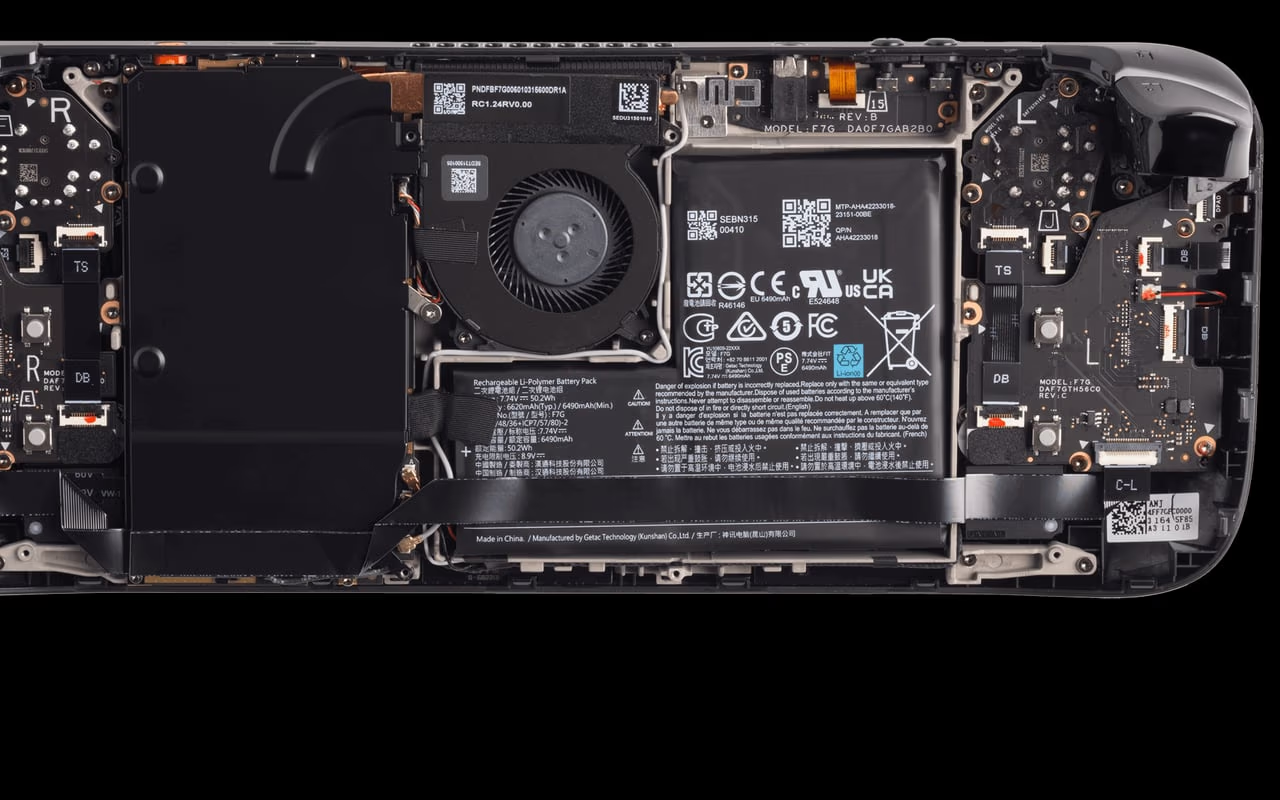
The Steam Deck's Quick Access Menu, reached with the button below the right trackpad, exposes a manual TDP limit: a cap on how much power the processor is allowed to draw. By default the system decides for itself, which is the right behaviour for a modern game and close to the wrong behaviour for an emulated one.
The reason is that a 16-bit console emulator cannot use the hardware it has been given. It will happily let the chip clock up, draw power and generate heat while doing work that a fraction of that capability would cover. Capping the limit costs nothing in performance and buys back a great deal of runtime.
The right numbers depend on the system. As a rough shape: 8-bit and 16-bit systems sit at the bottom of the range, the 32-bit generation somewhere in the middle, and PlayStation 2 or GameCube need a meaningful share of what the Deck can actually deliver. Rather than copying numbers from an article, the useful method is to start low, watch the frame rate counter in the performance overlay, and raise the limit only until the frame rate is stable. You will usually end up lower than you expected.
Per-game profiles are the part that makes this practical. The Quick Access Menu can save its settings per title, so you set a system's profile once and it applies every time.

Refresh Rate Is the Other Half
The Deck can run its display below 60Hz, and this is underused.
The logic is straightforward once stated: a great many retro games target 60fps, but plenty target 30, and some systems were 50Hz in their PAL form. If the content is 30fps, a 60Hz display shows every frame twice, and the machine is composing and driving twice as many display refreshes as the content needs. Dropping the refresh rate to match reduces that work.
There is a second benefit that matters more than the power saving. When refresh rate and content rate are mismatched, you get uneven frame pacing: a visible stutter that persists even when the frame rate counter reads a steady number. Matching the refresh rate to the content removes it, and the result feels smoother than a higher number would suggest.
Pair the refresh rate with the frame limiter rather than setting one alone.
CRT Shaders, and What They Are Actually Doing
Every game in your library was made for a display that no longer exists. Cathode ray tubes had scanlines, phosphor bleed, a soft roll-off between bright and dark, and enough horizontal blur to merge dithered pixels into colours that were never in the palette. Artists relied on all of it. Sonic's waterfalls and the transparency effects in a great many Mega Drive games are dithered checkerboards that a CRT blended into something solid and a modern LCD renders as an ugly grid.
CRT shaders simulate that. They are not nostalgia filters in the Instagram sense; they are an attempt to put back the display characteristics the art was drawn against.
They come at very different costs. The heavier multi-pass shaders model the mask, the beam and the geometry in detail and look superb on a large screen, but they need enough output resolution to have something to work with. The Deck's screen is small, which cuts both ways: a lighter shader is usually the better trade, because the fine structure of an expensive one is partly invisible at this size anyway.
The practical approach is to try a few, save one as a per-core preset so it applies automatically to every game on that system, and accept that this is a matter of taste rather than a setting with a correct value. What is not a matter of taste: something is being lost on a bare LCD, particularly on 2D systems, and it is worth seeing what a shader puts back before deciding you prefer without.
Aspect Ratio and Bezels
Retro systems output 4:3 or narrower. The Deck's screen is 16:10. Something has to fill the sides, and your options are black bars, stretching the image, or artwork.
Stretching is the wrong answer and worth saying plainly: it distorts sprite work that was drawn to specific proportions. Bezel packs are the pleasant answer, filling the margins with console artwork or a simple frame, and they are configured per core so you set them once.
Integer scaling belongs in the same conversation. Scaling a 240-line image to an arbitrary height produces uneven pixel rows, some doubled and some not, which looks subtly wrong in a way that is hard to place until you see it side by side. Integer scaling avoids that by only using whole multiples, at the cost of slightly smaller output. On a screen this size the trade is usually worth it.

Decky Loader
Decky Loader adds a plugin system to Game Mode, which is where you actually play. It is a community project rather than a Valve feature, so it carries the usual caveat that a major SteamOS update can temporarily break plugins.
The ones relevant here are the power management plugins, which expose finer control than the Quick Access Menu does, and the artwork plugins, which fix the single most annoying cosmetic problem in a ROM library: entries that arrive with missing or wrong cover art. Neither is essential. Both are the kind of thing you install once and forget.
What the Back Buttons Are For
The Deck has four rear buttons and two trackpads, and emulation is one of the few contexts that can use all of them.
Save state and load state are the obvious assignments, and having them under your fingers rather than in a menu changes how you play difficult games. Fast forward is the other one worth binding, and it is transformative for RPGs in a way that is hard to appreciate until you have held it through a random encounter. The trackpads matter for the handful of systems that expected a mouse or a light gun.
This is the genuine advantage over dedicated retro handhelds, most of which have neither the buttons nor the software to make use of them.
The Honest Summary
Retro gaming is the Steam Deck's best-case scenario for battery life, because it is the only category of software that consistently asks less of the hardware than the hardware can give. A considered power profile, a matched refresh rate and a shader you like will get you a machine that plays essentially everything, looks better than the original ever did on a modern panel, and lasts long enough to be worth taking somewhere.
If you have not set the guides up yet, start with the EmuDeck setup guide, then the per-system settings.
More Steam Deck Guides

EmuDeck: Best Settings for Every System (NES to PS2)
EmuDeck's defaults are good. This is the remaining ten percent: which settings actually change what you see, which ones are cargo cult, and where the Steam Deck's hardware genuinely constrains what is possible.
EmuDeck on Steam Deck: The Complete Setup Guide
EmuDeck turns a Steam Deck into a machine that plays most of retro gaming history, and it does the tedious parts for you. Installation, the frontend decision that trips people up, and the things worth knowing before you start copying ROMs.