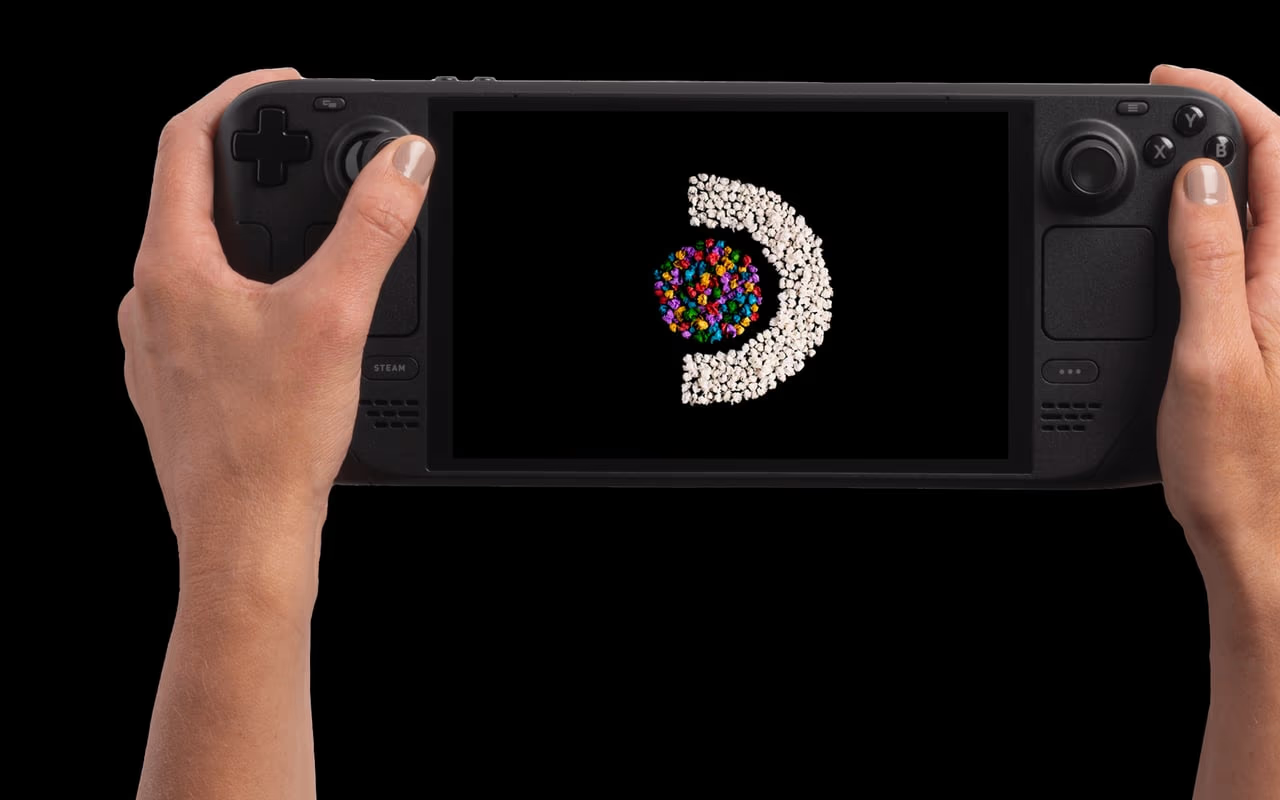
EmuDeck on Steam Deck: The Complete Setup Guide
The Steam Deck is arguably the best retro gaming handheld ever made, and it does not know it out of the box. It has the horsepower, the controls, a screen at a sensible size, and an operating system that will run essentially every emulator worth running. What it does not have is any of that set up for you.
That is the problem EmuDeck exists to solve. It is an installer that fetches the emulators, applies sane defaults, wires up the Steam Deck's controls for each one, sorts out where your saves live, and gets your library appearing in Game Mode with artwork instead of leaving you in Desktop Mode staring at a file manager.


What EmuDeck Actually Installs
It is worth knowing what you are getting, because "EmuDeck" is not itself an emulator and people sometimes look for its settings menu in vain.
For older systems, EmuDeck installs RetroArch and a set of cores: individual emulators that run inside RetroArch's shared interface, so shaders, save states, controller configuration and rewind all work the same way regardless of which system you are playing. This is why a single set of habits carries you from the NES through to the Saturn.
For newer and more demanding systems it installs standalone emulators instead, because the dedicated projects are simply better: PCSX2 for PlayStation 2, Dolphin for GameCube and Wii, and so on. These have their own interfaces and their own settings, which is the main reason the experience feels less uniform once you get past the 32-bit era.
Alongside those it installs the supporting tools that have accumulated over the last couple of years: the BIOS Checker, a Game Compressor, a Storage Mover for shifting your library between internal storage and a card without breaking paths, and an updater.
Before You Start
Two things worth knowing, because they shape everything after.
You need somewhere to put the games. The internal drive fills up quickly if the Deck is also your Steam machine. A microSD card is the usual answer, and the specification matters more than the capacity: look for A2 and V30 ratings rather than the headline read speed on the packaging, since emulation is a small-random-read workload rather than a sequential one.
You need BIOS files for some systems. PlayStation, PlayStation 2, Saturn and a few others will not run without them, and EmuDeck does not supply them, for obvious legal reasons. It does now ship a BIOS Checker that tells you exactly which files are missing and whether the ones you have are the right ones, which removes most of the guesswork that used to make this the worst part of the process.
Installing
Installation happens in Desktop Mode, which you reach by holding the power button and choosing Switch to Desktop. From there it is a download from emudeck.com and running the installer.
The installer offers Easy Mode and Custom Mode. Easy Mode is the right choice for a first install: it picks emulators per system, applies configurations that are genuinely well tuned, and does not ask you forty questions about things you cannot evaluate yet. You can change any of it afterwards.
The Frontend Decision
This is the part that confuses people, and it is worth understanding before you click.
Since version 2.4, EmuDeck asks you to choose between two ways of presenting your library. Steam ROM Manager scans your ROMs and adds each game to Steam as its own entry, so your emulated games sit in your Steam library next to everything else, with artwork, and launch straight from Game Mode. ES-DE is a dedicated emulation frontend, a single application that you launch and then browse by system, with its own themes and its own organisation.
Neither is wrong. Steam ROM Manager suits you if you want retro games to feel like part of the Deck's normal library and you play a relatively curated selection. ES-DE suits you if you have thousands of ROMs, because adding thousands of individual Steam entries becomes unwieldy, and because browsing by system with box art is a nicer way to rediscover things. If you pick ES-DE, EmuDeck adds it to Steam for you so it is still one button press from Game Mode.
You can change your mind later, which is worth saying because people agonise over this.
Getting Your Games On
Point EmuDeck at your ROM folder and it creates a structured directory tree, one folder per system, with names that tell you what goes where. Copy your files into the matching folders, then run whichever frontend tool you chose to scan them in.
Compression is worth doing and EmuDeck now includes a Game Compressor to do it. Disc-based systems benefit enormously: CHD is the format to use for PlayStation, Saturn and PlayStation 2, and it typically saves a substantial fraction of the space with no practical downside, since the emulators read it natively. Cartridge systems compress less dramatically because the files were small already.
Saves, and the Cloud Caveat
EmuDeck centralises save files so they are not scattered across a dozen emulator directories, which alone makes backing them up practical.
It also offers cloud sync, built on rclone, so progress follows you between the Deck and a desktop install. One detail the enthusiasm around this feature usually omits: cloud sync is a Patreon supporter feature, not part of the free installer. It is a reasonable thing for the project to charge for, but it is worth knowing before you plan a setup around it. If you would rather not, rclone is a general purpose tool and configuring it yourself against your own storage is entirely possible, just manual.
When Something Does Not Work
The failures are boringly consistent, which is good news.
Games missing from Steam. Almost always the ROM folder path or a re-scan that has not been run. Run the frontend tool again.
A system refuses to boot anything. Check BIOS first, before anything else. The BIOS Checker exists precisely because this is the most common cause.
Poor performance. Look at the power limit in the Quick Access Menu before you start changing emulator settings. Most retro systems need far less power than the Deck's default profile provides, and the more interesting problem is usually battery life rather than frame rate. There is a whole guide's worth of that, which is the advanced tweaks piece.
Something specific to one system. Per-system settings are their own topic, covered in the best settings guide.
Keeping It Current
EmuDeck ships updates frequently and includes an updater tool. This matters more than it sounds: emulator development moves quickly, and a year-old install is meaningfully worse than a current one. It is worth re-running the updater occasionally rather than treating the setup as finished.
Is It Worth It
Set against a dedicated retro handheld, the Deck is heavier, bulkier and has worse battery life, and nobody should pretend otherwise. What it has instead is that it plays everything, up to and including the systems the cheap handhelds quietly cannot manage, and that when a new emulator release lands you get it, because this is a PC rather than a locked firmware image.
Budget about half an hour for the whole process, most of which is copying files.
More Steam Deck Guides

EmuDeck: Best Settings for Every System (NES to PS2)
EmuDeck's defaults are good. This is the remaining ten percent: which settings actually change what you see, which ones are cargo cult, and where the Steam Deck's hardware genuinely constrains what is possible.
Steam Deck Retro Gaming: Advanced Tweaks and Hidden Settings
Power limits, refresh rates, CRT shaders and Decky plugins. The settings that stop mattering for frame rate and start mattering for how long you can actually play, and what a shader is really doing to the picture.